
Get started
New user guide
Six steps from signing up to your first request. Each step ends with something you can check; if you get stuck, read the note under that step.
-
Sign up and sign in
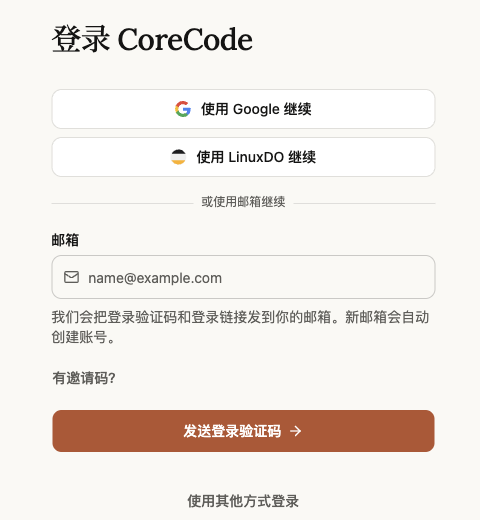
Open the sign-in page and sign in with Google or LinuxDO, or enter your email to receive a code. A new email creates an account automatically. You land in the console.
-
Top up
On the Wallet page, pick an amount and pay with Alipay or WeChat Pay. ¥1 buys $1 of credit, and new users can start with the ¥29.9 newcomer pack. The rules are under Top-up below.
-
Choose a group
The group decides which models a key can call and at what price, so decide what you will use before you create the key:
What you want to do Group Use Claude only in the Claude Code CLI, IDE plugins or Claude Desktop Claude 满血(仅限CC), the cheapest Use Claude in Magpie, an SDK or another tool Claude 满血(可外接) Use GPT in Codex or another tool GPT Call Gemini or Grok Gemini or Grok Use several vendors with one key auto; Claude is billed at the 可外接 price If you are unsure, choose auto; you can change a key's group later under "Edit" without replacing the key. Each group is described in Groups.
-
Create an API key
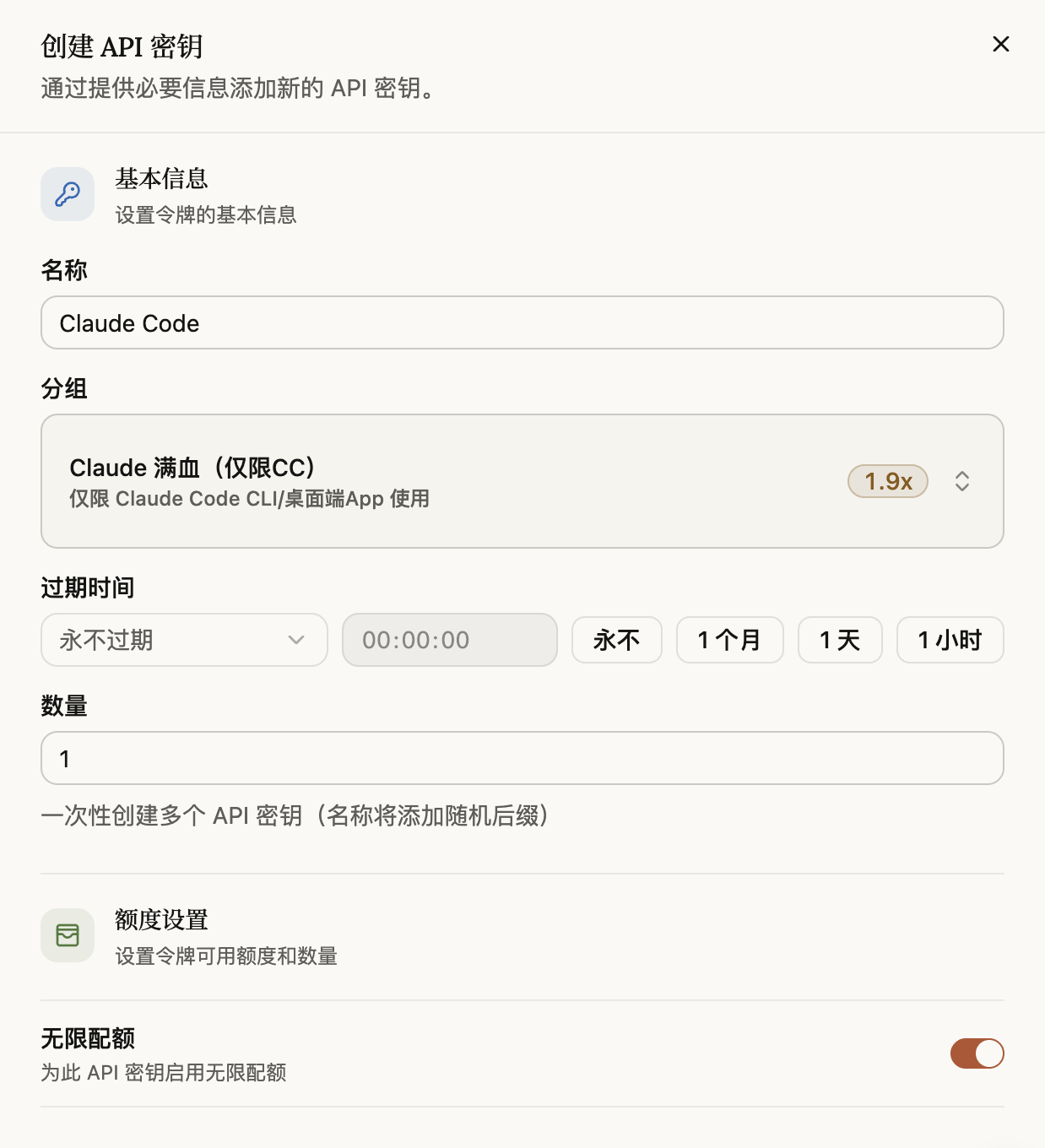
On the API Keys page, click "Create API Key" at the top right. Give it any name, choose the group from the previous step, leave the rest as is, and click "Save changes". A new key defaults to auto; if you only use Claude Code, change it to 仅限CC.
 Keep your key to yourselfIf it leaks, delete it on the API Keys page and create a new one. Usage during the leak is billed as normal.
-
Connect a tool
Click "Connect a client" on the key's row. The window has ready-made configurations, with your key filled in, for Claude Code, Codex and other tools; copy one. Or follow a guide:
MagpieRecommendedImport in one click and switch models in Claude Code, Codex, OpenCode and other agents. Claude CodeEdit one settings.json.
 CodexGPT models: edit one config.toml.
CC SwitchA desktop app: import in one click and see your balance on the card.
OpenCode and OpenClaw have their own guides, and other tools use the OpenAI-compatible API; for the desktop app see Claude Desktop, and on Windows start with Windows.
-
Verify and check the usage logs
Send a message from the tool; a reply means you are connected. Then open the console's usage logs: every request has a row with its model, group, input and output tokens, cache hits and cost. If the group is not the one you expected, go back to step 3 and check the key's group.
If no reply comes, look the error up in Errors. A 401 usually means the key is wrong; a 403 means the balance ran out or the group does not admit this client.
Top-up
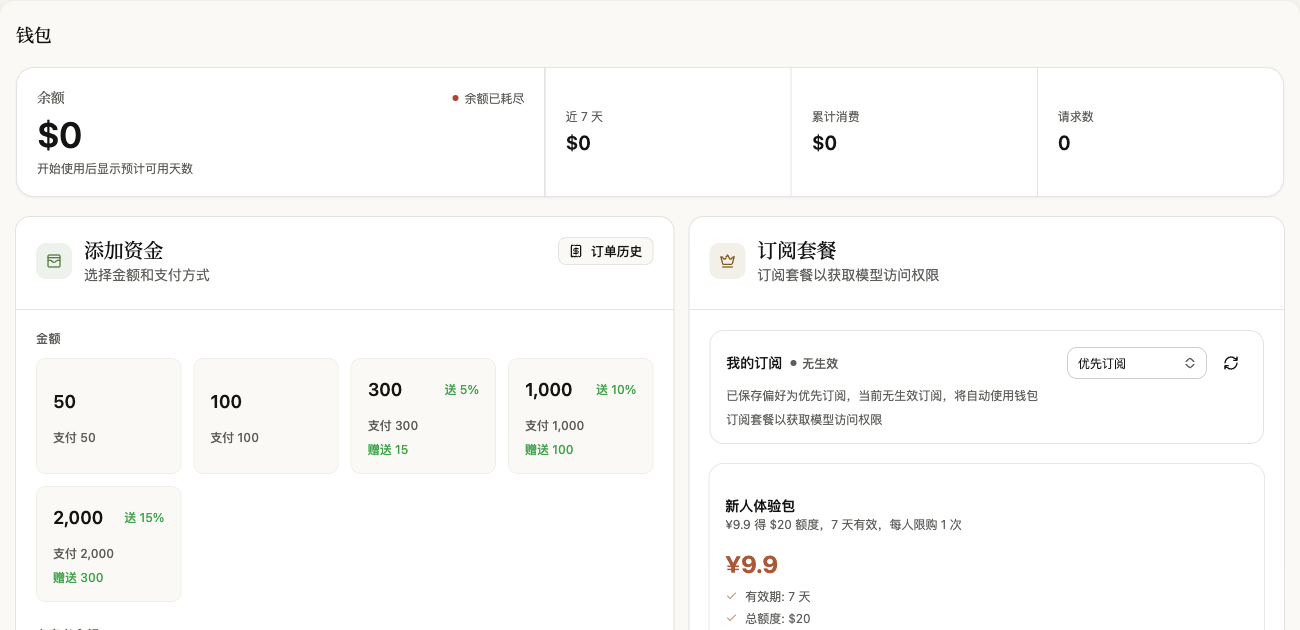
On the Wallet page, pick an amount or enter one under Custom Amount, then pay with Alipay or WeChat Pay.
| Item | Details |
|---|---|
| Rate | ¥1 = $1 of credit. Balances and charges in the console are shown in US dollars. |
| Amount | Presets of 50, 100, 300, 1,000 and 2,000, or a custom amount of at least 10. |
| Bonus | 5% on a single payment of 300 or more, 10% from 1,000, 15% from 2,000. Bonuses apply to online payments only. |
| Newcomer pack | ¥29.9 for $50 of credit, valid for 7 days, once per person. Users who registered before 27 October 2026 see the starter pack instead: ¥9.9 for $20, on the same terms. |
| Arrival | Credited automatically once payment succeeds. Every top-up is listed under Order History on the Wallet page. |
If the payment page does not open or keeps loading, turn off your proxy or VPN and try again. When your credit runs out, requests receive 403; it works again as soon as you top up, with no reconfiguration.